
Browser Extensions
The mSecure Browser Extension provides fast, secure auto-login for Chrome, Firefox, and other Chromium-based browsers. Use it to search your records, auto-fill credentials, and automatically save new logins - directly to your mSecure database.
Key Features
- Search all logins or filter by Favorites, Recents, or Password Generator.
- Auto-fill usernames and passwords from your mSecure database.
- Auto-capture new logins and password updates and save them directly to mSecure.
- All data lives locally in your mSecure app - never on a server.
- Mac support today; Windows is coming in a future update.
- Safari users can use macOS Password Auto-Fill but not the full extension features.
Install the Browser Extension
Chrome & Chromium Browsers (Edge, Brave, etc.)
- Go to the Chrome Web Store > mSecure (or click here).
- Click Add to Chrome > Add Extension.
- To verify installation:
- Click the puzzle icon > Manage Extensions.
- Make sure mSecure is enabled.
- For Edge/Brave, install from the Chrome Web Store.
Firefox
- Visit the Firefox Add-Ons Store > mSecure (or click here).
- Click Add > confirm the installation.
- To verify installation:
- Click the menu (☰) > Add-ons and Themes > Extensions.
- Ensure mSecure is enabled.
Unlocking the Extension
The extension starts locked.
- Click the mSecure icon or user the default hotkey:
- Mac: ⌘ + Shift + E
- Windows: Ctrl + Shift + E - Enter your mSecure account password.
- You can change the hotkey in your browser's extension settings.
Using the Extension
Main View
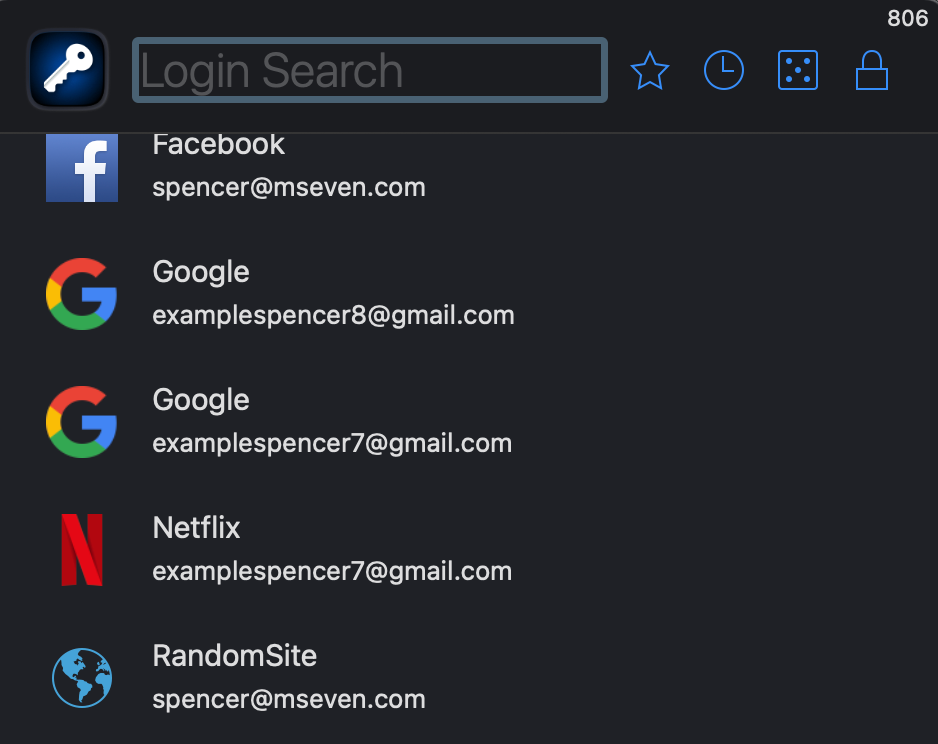
Once unlocked, you'll see your list of logins.
- Search: Enter a name, website, or email.
- Filters: Favorites ★, Recents ⏱, Password Generator ?.
Auto-Login
mSecure detects login fields and fills in credentials automatically.
Requirements for Auto-Fill:
- Record must have URL, Username, and Password fields.
If multiple matching records exist, you will be prompted to choose one.
When Unlocked
- Go to the login page.
- Click the username/email field.
- mSecure auto-fills the credentials.
When Locked
- Go to the login page.
- Click the username/email field.
- Enter your mSecure password when prompted.
- Select the login (if more than one exists).
Selecting a Record Manually
You may choose a record from the extension window. If it contains a valid login URL, the site will open and auto-fill immediately.
Auto-Capture
mSecure can detect when you sign in, sign up, or change a password. When it notices new or updated credentials, it will prompt you to save them.
Saving a Login for the First Time If the extension detects a new login:
|  |
Signing Up for a New Account
If you're creating an account:
- mSecure asks if you want to save it as a new record.
- If an existing login for that site already exists, mSecure will ask whether to update it or create a new one.
Updating an Existing Password
When mSecure detects a password change:
- Choose Update Existing Record.
- The new password or username will be saved to mSecure automatically.
This is helpful when:
- You reset a forgotten password.
- You intentionally change a password.
- You generate a new password with the Password Generator.
Password Generator
The built-in generator creates strong, customizable passwords.
After generating a new one, mSecure will prompt you to:
- Save a new login, or
- Update an existing record.
If Auto-Capture Doesn't Work
Some websites use custom or non-standard login forms that prevent the extension from detecting fields. While we continually expand compatibility, not all sites can be supported.
If you experience issues:
- Click here to submit a ticket, or
- Email support@msevensoftware.com
Please include the site's URL and a brief description of the issue.
Did you find it helpful? Yes No